How to use SplitLog
Everything the app does, in the order you are likely to need it. The numbered dots on each screenshot mark what to tap.
- Start a workout
- Add exercises
- Log sets
- Warm-ups and drop sets
- Cardio
- Pause and finish
- Plan ahead
- Splits and duplicating
- Share a workout
- Records and progress
- Your streak
- Calendar
- Reminders
- Widget
- Units and themes
- Keeping your log safe
- Moving to a new iPhone
Start a workout
 1234
1234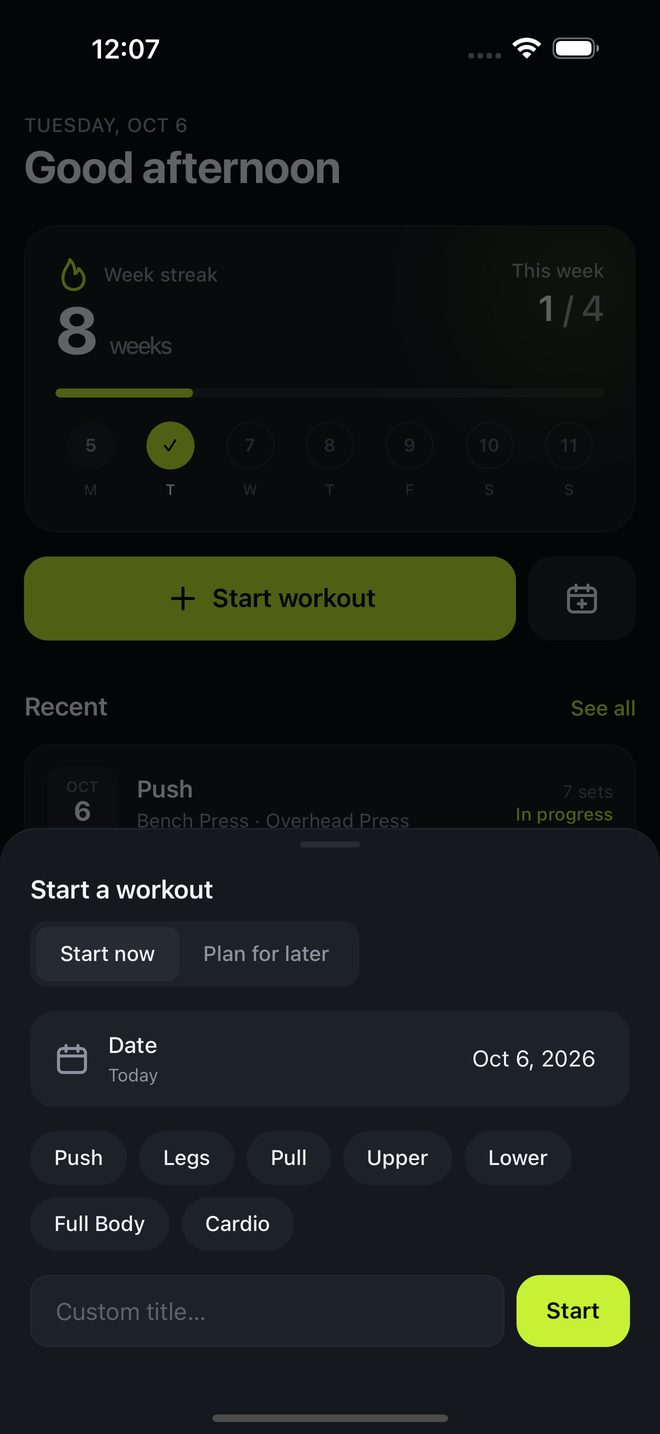 12345
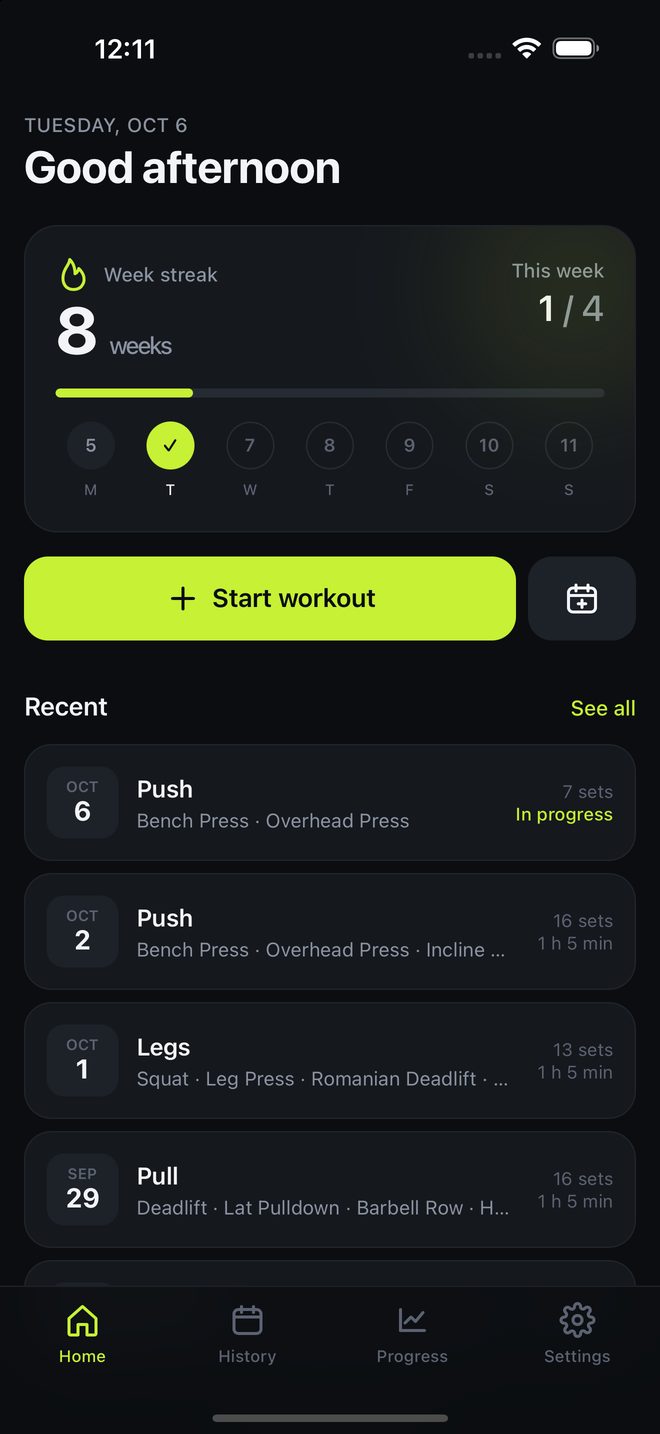
12345- On Home, tap Start workout.
- Tap a title such as Push or Legs, or type your own and tap Start.
The workout opens straight away and a timer starts. To log a session you did on an earlier day, change the date in the same sheet before choosing a title. Past sessions have no timer.
A workout you leave without adding any exercise is discarded.
Add exercises
 123
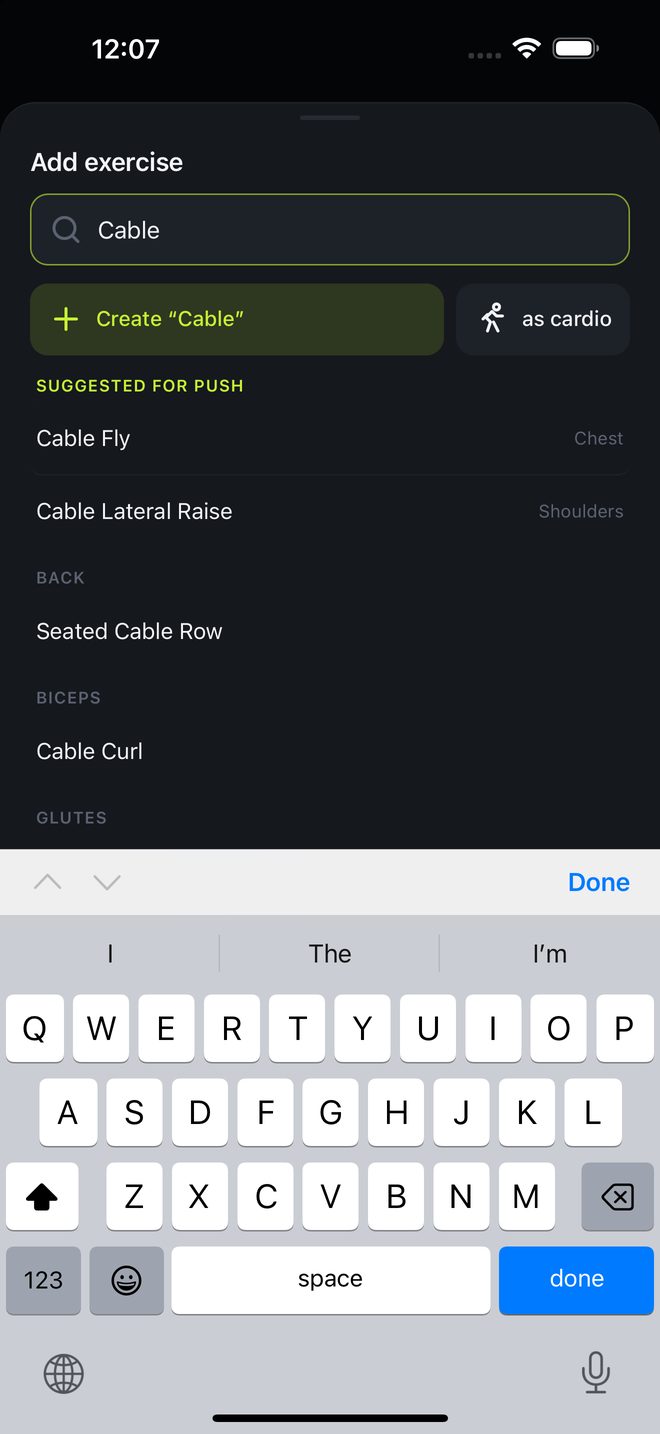
123- Tap Add exercise.
- Pick from the list, or search. Exercises you have used under the same workout title are suggested first.
- To add your own, type its name and tap Create. Choose as cardio for a cardio exercise.
If you did this workout before, Repeat last appears at the top of an empty workout. Tap it to see the whole previous session first, every exercise and set with its type, then choose Repeat to bring in the exercises, each with one empty set. Last time's numbers show faintly in the empty fields, so the rows only ever count the sets you have done.
To delete an exercise you created from your library, hold it in the list. This also removes it from every workout it was logged in. Built-in exercises cannot be deleted.
Log sets
 123456789
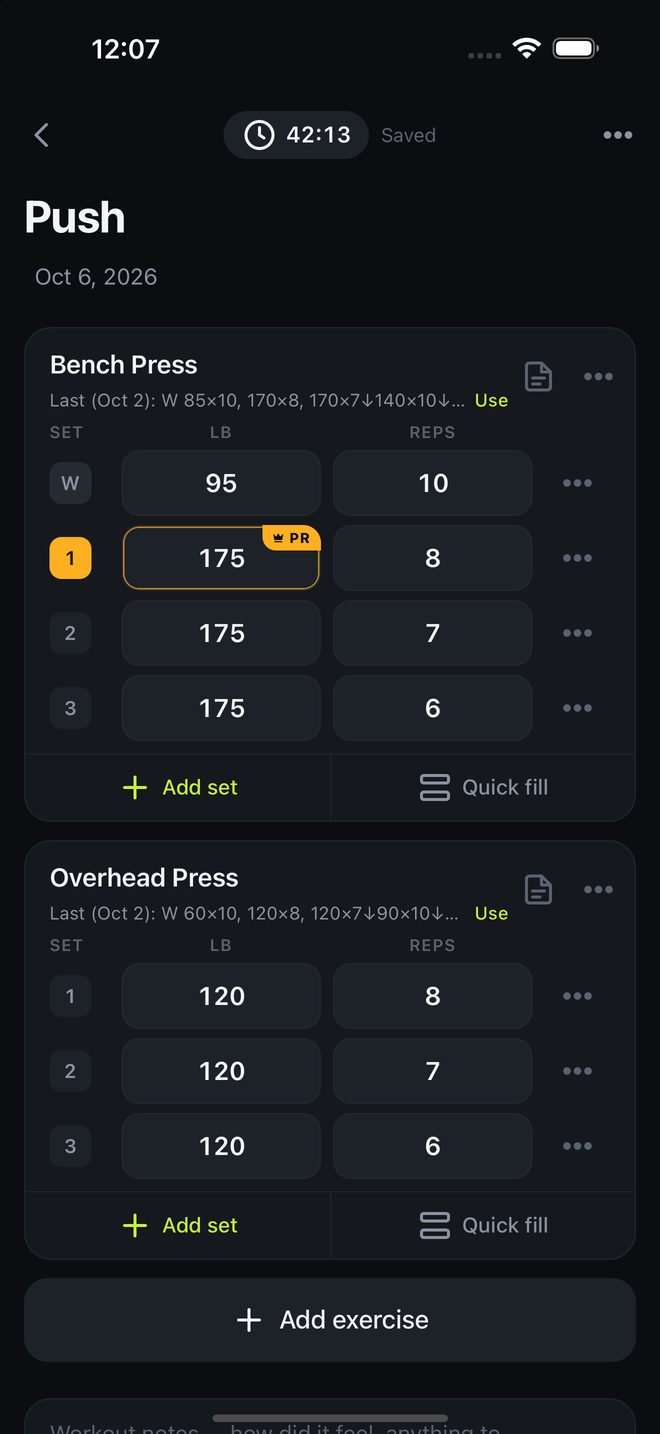
- Type the weight and reps. Empty sets below take the same values, so three sets at one weight need typing once.
- Add set adds a fresh, empty row. Type the weight and reps, or leave a field blank to see last time's numbers in grey. To copy a set instead, tap its number and choose Duplicate.
- To change the order of your sets, press and hold a set until it lifts, drag it up or down, and let go. The sets renumber themselves. To move a whole exercise, press and hold its name at the top of its card and drag the card.
- Quick fill logs several identical sets in one go, such as 3 sets of 8 at 185.
- Under the exercise name, the Last line summarises the last time you did it. Tap it to see every set from that session, warm-ups, drop sets and all, and choose Use sets if you want them copied in.
- Swipe a set to the left to delete it. A long swipe deletes at once.
- Tap the note icon to write a note for the exercise. There is a box for notes on the whole workout at the bottom.
While a workout is in progress, changes are saved as you make them; the top of the screen reads Saved. A finished workout or a plan opens for editing instead: make your changes, then tap Save at the top. If you try to leave with unsaved changes, SplitLog asks whether to save or discard them.
Warm-ups, drop sets and sets to failure
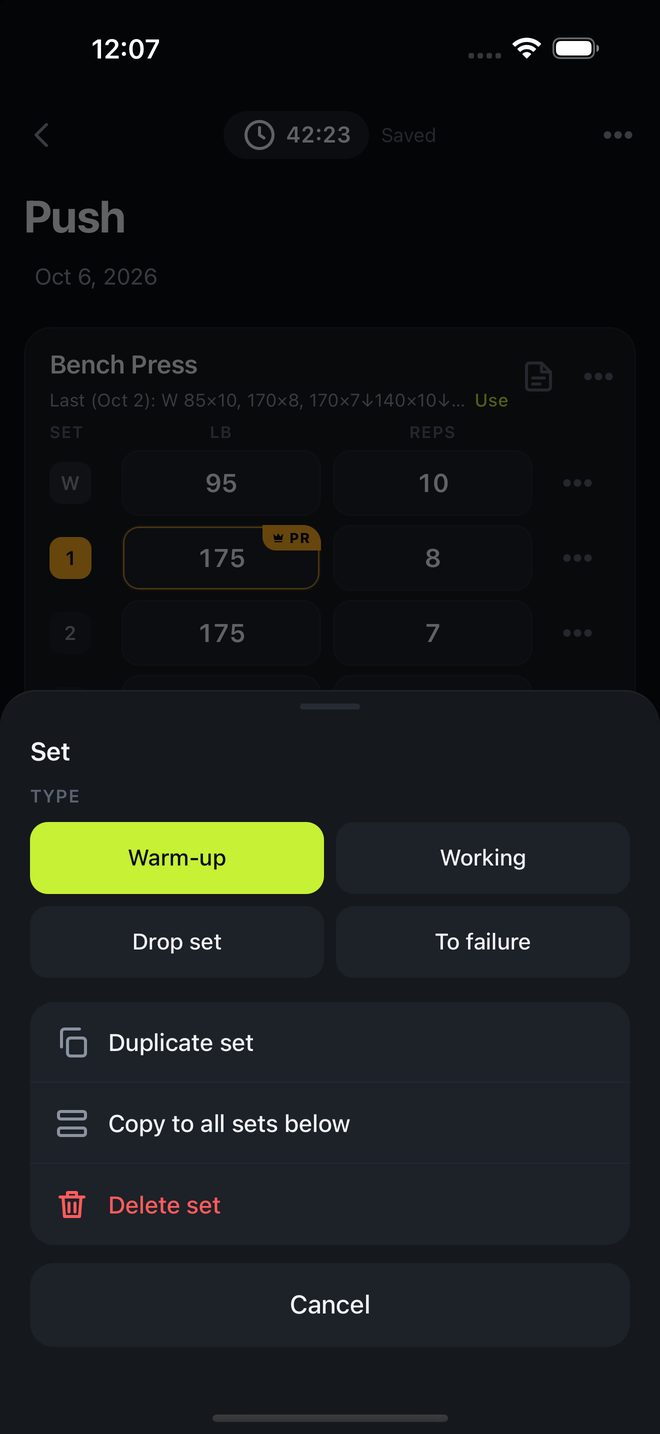 123456
Tap the number at the start of a set to change its type, duplicate it, or copy it to the sets below.
- Warm-up sets are marked W. They do not count toward records or volume.
- Drop set: one set that steps down in weight. Tap + Drop again to add each step.
- To failure marks the set with F.
Cardio
Cardio exercises log intervals in place of sets. Each exercise shows up to four figures, chosen from time, distance, speed, incline, level, calories, heart rate, floors, power and cadence.
To choose them, tap the ••• on the exercise, then Variables. Time accepts 30, 30:00 or 1:05:00. If you log speed and time, the distance is worked out for you.
Pause and finish
 123
123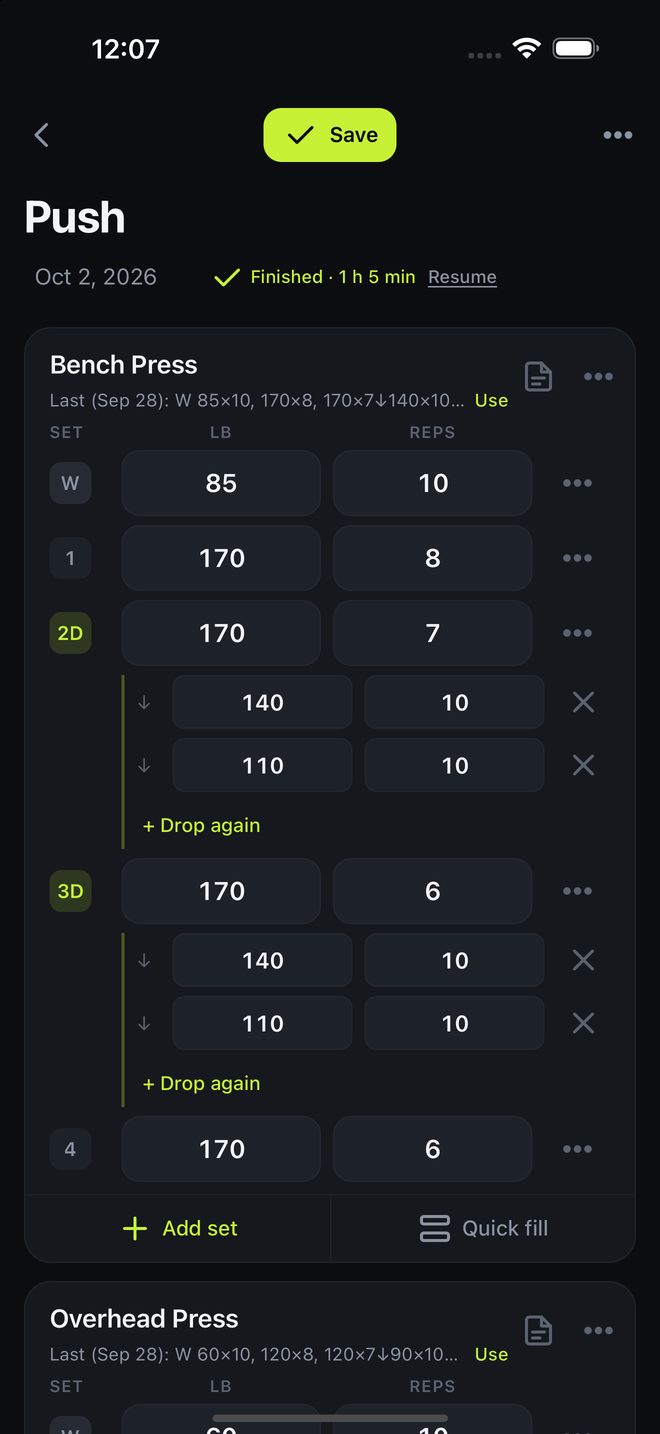 123
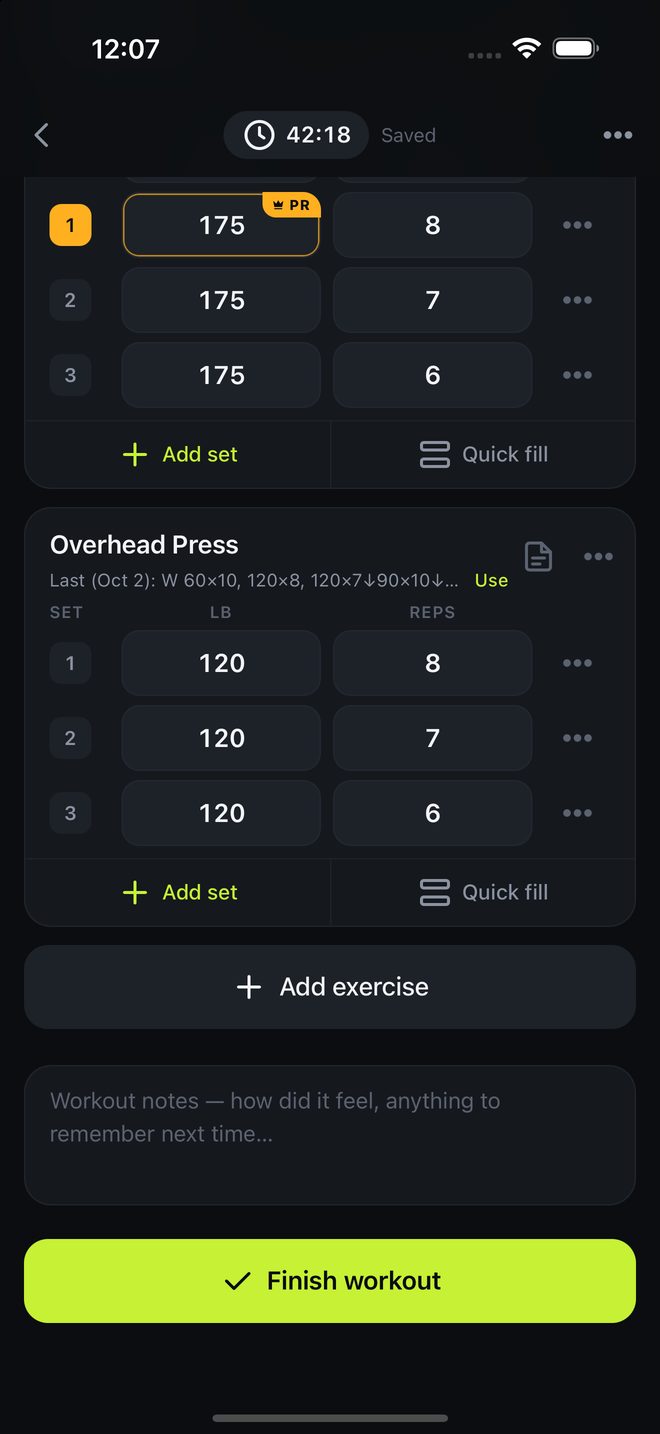
123- Tap the timer at the top to pause or resume, and to switch gym reminders on or off. Time spent paused is not counted.
- Tap Finish workout when you are done.
- To carry on with a finished workout, open it and tap Resume. The time in between is not counted.
- To delete a workout, swipe it to the left in a list, or hold it for options.
Plan ahead
- On Home, tap the calendar button next to Start workout.
- Choose the day and a title, then add the exercises and target sets.
- On the day, tap Start on the plan. Check each exercise off as you finish it.
Plans do not count toward your streak, your records or your history until you start them.
Splits and duplicating
Duplicate to days
Hold any workout or plan and choose Duplicate to days… (it is also in the workout's menu). Tap as many days as you like on the calendar, past or future, up to 60 at a time, and confirm. Each day gets a plan with the same title, exercises and target sets, ready to start. Days that already have that exact plan are skipped, and the app tells you so. Plans never count as training until you start them.
Splits
On the Calendar tab, tap Splits to save your training cycle as an ordered list of days, for example Push, Pull, Legs, Rest. Each workout day is captured from a plan or workout you pick (build one in the plan editor first if you want something new); a rest day takes a day without adding anything. Apply a split from a start date for a number of weeks and the calendar fills with plans in that order, day after day, regardless of weekday; days that already hold the same plan are skipped. The plans are ordinary plans afterwards, so edit, start or delete them freely without touching the split. The splits list shows how far each one is filled, and Extend carries the cycle on from where it stopped. Splits are included in your backup file.
Share a workout
Hold a workout on Home or in the Calendar and choose Share (it is also in the workout's menu), then pick one of three things to send:
- Image: a card of the session in your theme's colours, with every exercise, set and record, for Instagram, Messages or anywhere else.
- Text: a plain summary that reads well in a message, one exercise per block and one set per line.
- SplitLog file: a small
.splitlogfile for someone who has SplitLog. Tapping it opens SplitLog, which shows what is in it and adds the workout to their calendar as a plan for today, matched to the exercises they already have. Nothing on their phone is removed or replaced: importing only adds. Opening the same file twice never doubles it, and they can choose to keep it as a completed workout on its original date instead.
Sharing goes through your phone's share sheet; SplitLog itself sends nothing anywhere.
Records and progress
 123
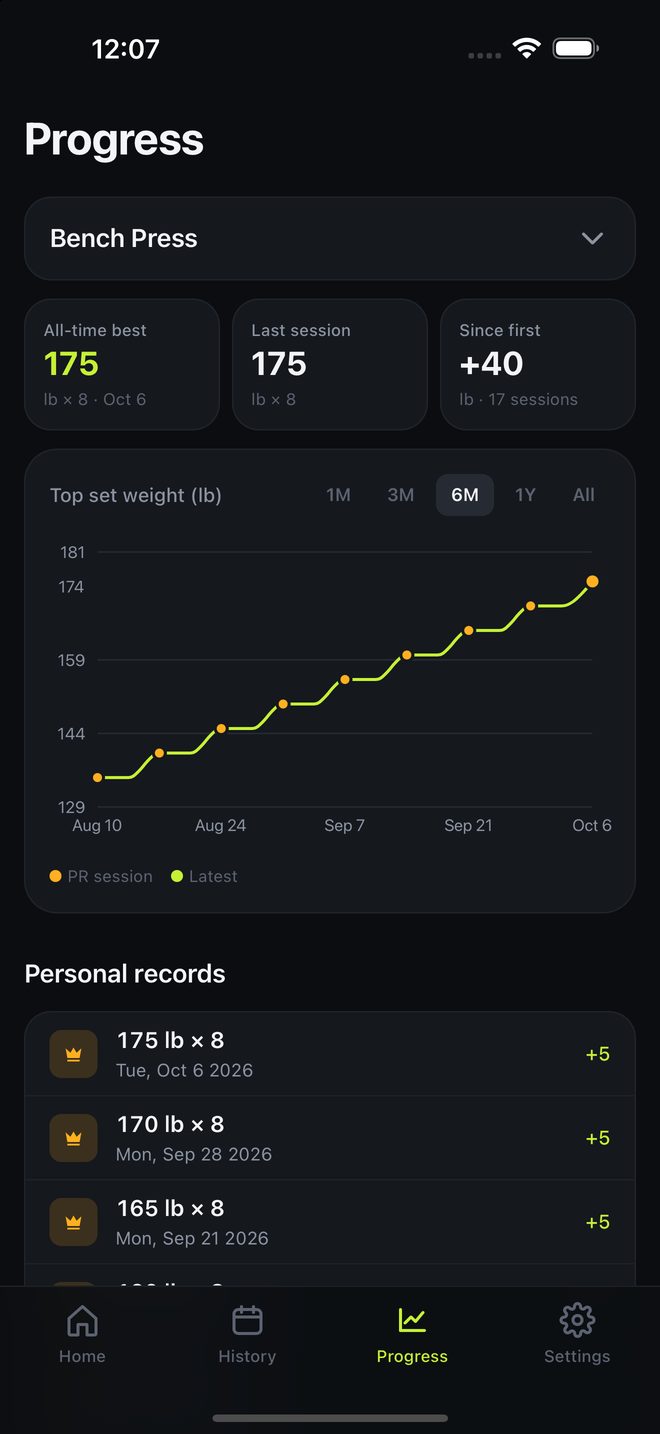
123A set is marked PR when its weight is higher than the heaviest you have logged for that exercise in any earlier workout. Warm-ups do not count.
The Progress tab shows, for any exercise, your all-time best, a chart of your top weight over time, and a list of every record. For cardio it shows time, distance and pace.
Your streak
A week counts when you train on at least as many different days as your weekly goal. Weeks run Monday to Sunday. The current week is added as soon as you reach the goal, and does not break the streak before it ends.
Change the goal in Settings, under Goal.
Calendar
 1234
1234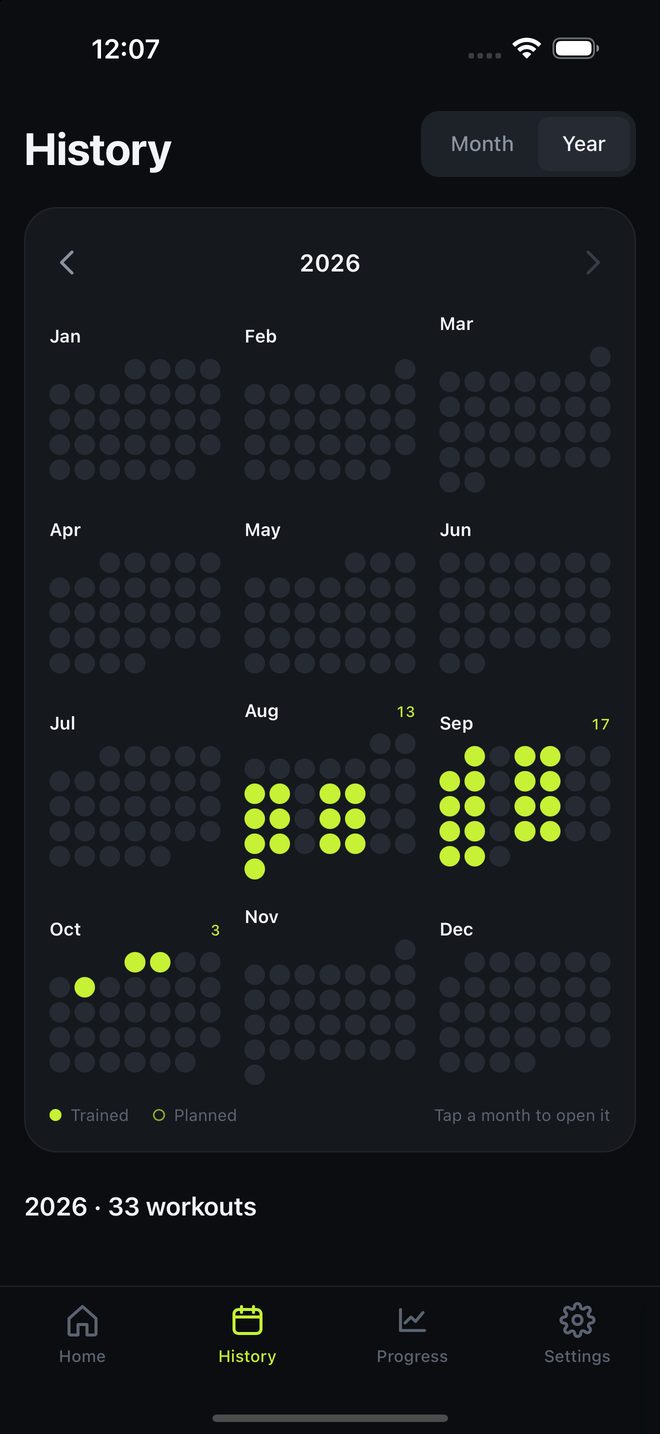 123
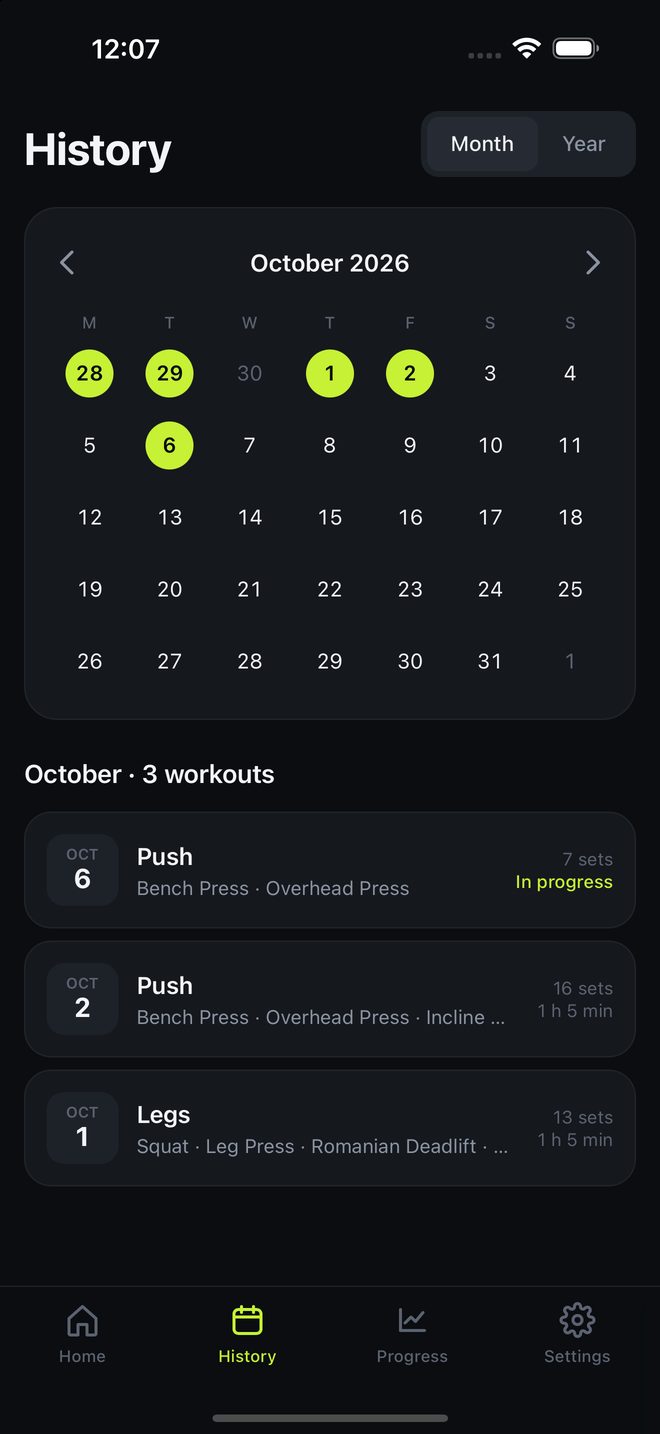
123The Calendar tab shows the days you trained. Swipe left or right to change month, and tap a day to see its workouts. Switch to Year at the top to see the whole year as twelve small months with every training day lit; swipe to change year, and tap a month to open it.
Reminders
Both kinds are optional and are switched on in Settings. iPhone asks for permission the first time.
- Daily check-in: one reminder at the time you choose, only on days with no workout logged.
- Gym reminders: gentle nudges to log your sets while a workout is in progress. They stop when you pause or finish.
Home Screen widget
On Android: hold an empty spot on the home screen, tap Widgets, find SplitLog, and drag Streak or Start workout onto the screen.
Hold an empty area of your Home Screen, tap Edit, then Add Widget, and search for SplitLog. There are two: Streak shows your streak and this week's training days, and Start workout is a one-tap tile that opens the app on the start sheet. The Start workout widget also fits the Lock Screen: hold the Lock Screen, tap Customize, and add it under the clock. On iOS 18 and later you can also put a Start workout control in a Lock Screen corner, in place of the flashlight or camera, or in Control Center: hold the Lock Screen, tap Customize, tap a corner button and choose SplitLog.
Units and themes
 1234
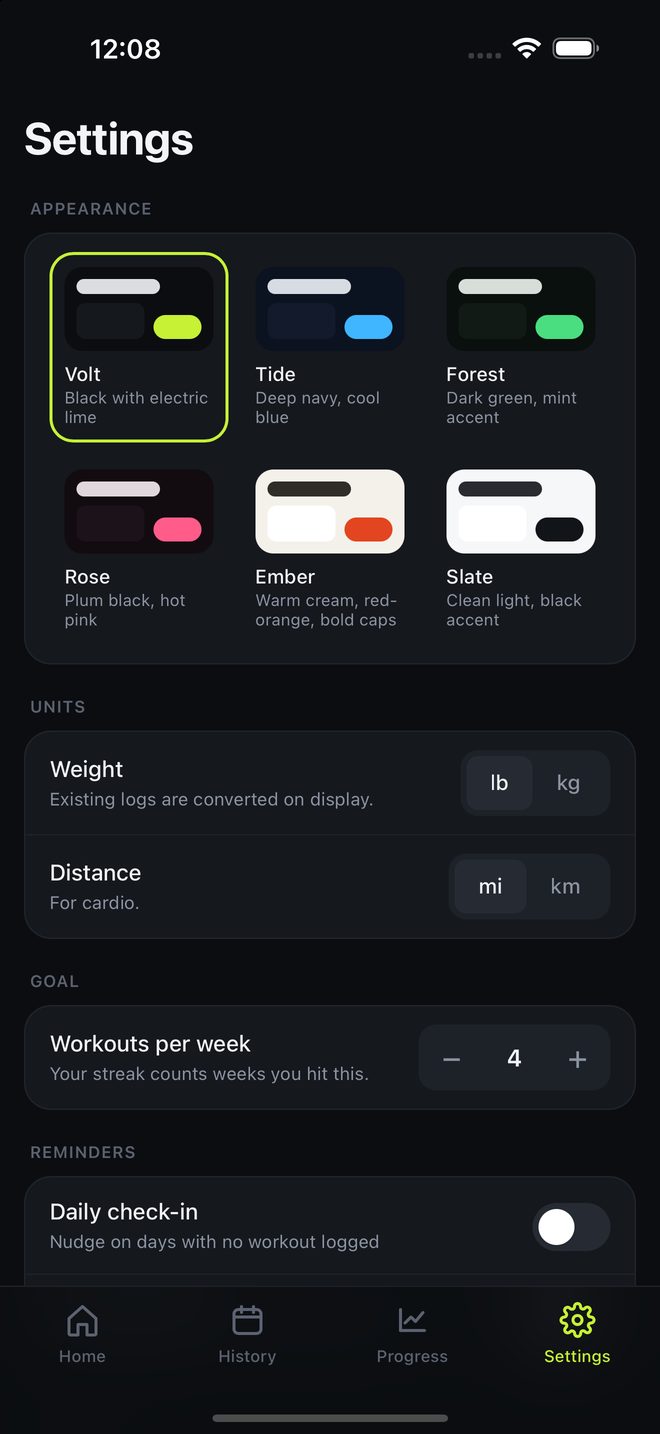
1234In Settings you can switch between pounds and kilograms, and miles and kilometres. Workouts you already logged are converted for display and keep the values you typed. There are six themes to choose from, and you can make your own.
Make your own theme
In Settings, under Appearance, tap Create your own. Pick four colours: the background, the cards, the accent used for buttons and highlights, and the text. Choose Dark or Light so the status bar and keyboard match. The preview shows a workout card in your colours as you go, and SplitLog warns you if text or buttons would be hard to read. Give it a name and tap Save and use. Your themes sit next to the built-in ones; hold one to edit, share or delete it. You can keep up to 20.
Share a theme
Hold your theme and choose Share. SplitLog hands a short code starting with splitlog-theme: to the share sheet, so you can send it in a message. The code holds only the name and the colours.
Import a theme
Tap Import a theme, paste the code or the whole message it came in, check the preview, and tap Save and use. A theme with the same colours as one you already have is updated rather than added twice. Themes are kept in the app's settings on your iPhone, like your theme choice, and are not part of a backup file.
Keeping your log safe
 1234
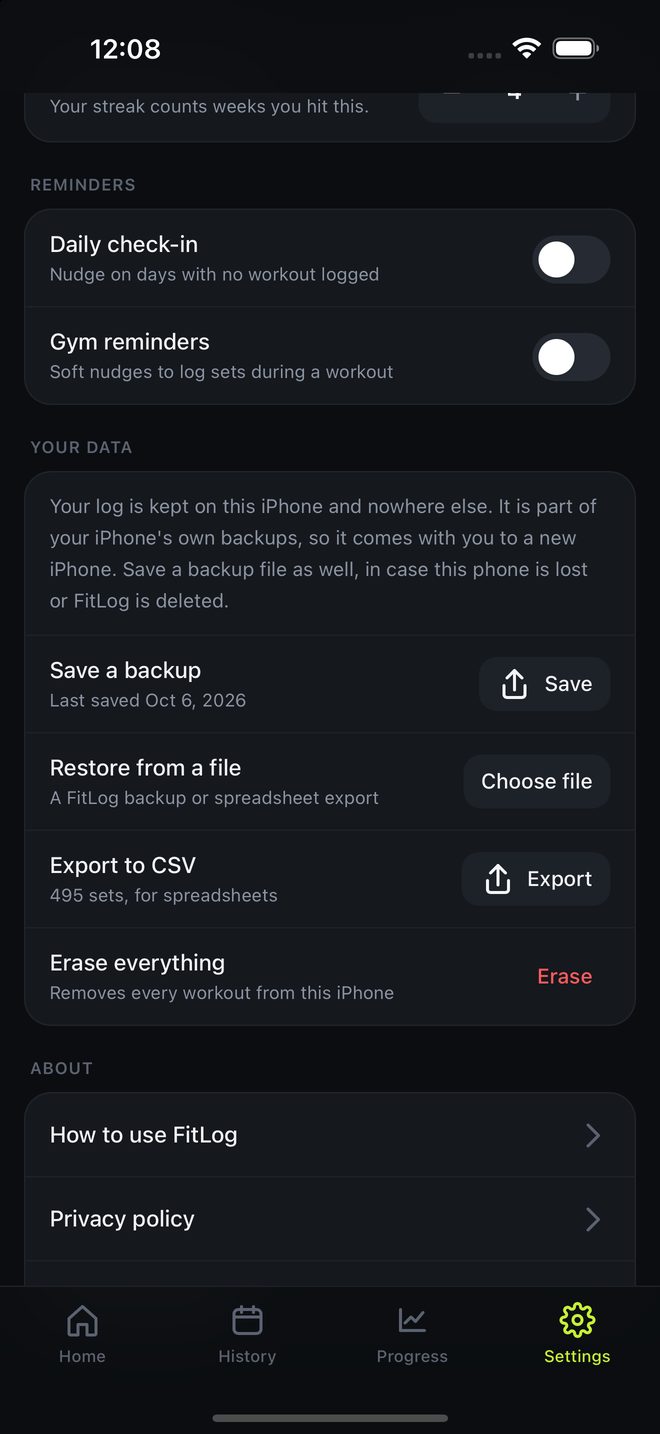
1234Your log is kept on your iPhone only. There is no account and no copy on a server, so if the phone is lost and you have no backup, the log is lost with it. Deleting SplitLog from your iPhone deletes the log too.
Save a backup file
- Open Settings in SplitLog and tap Save next to Save a backup.
- Choose Save to Files and pick iCloud Drive, or send the file to yourself.
The file holds everything: workouts, sets, notes, plans, your exercise library and your settings. SplitLog reminds you when your last backup is more than a month old.
Restore from a file
- Open Settings and tap Choose file next to Restore from a file.
- Pick the backup. SplitLog shows what is in it before anything changes.
- Tap Restore.
Restoring adds the file's workouts to what is on the phone. Nothing you logged is removed, and nothing is added twice: a workout that is already on the phone is recognised, even if it arrived from a spreadsheet, and a backup fills in its notes and session times.
Export a spreadsheet
Export a spreadsheet makes a CSV file with one row per set that opens in Numbers, Excel or Google Sheets. It is for looking at your numbers elsewhere, not a backup: SplitLog can read it back in a pinch, but it holds sets only, so notes, session times, plans, splits and your settings are not in it. Use a backup file to keep everything.
Erase everything
Erase everything in Settings removes every workout from the iPhone after you confirm. It cannot be undone.
Moving to a new iPhone
- On the old iPhone, save a backup file to iCloud Drive as described above. Do this even if you plan to transfer the whole phone.
- Set up the new iPhone. If you transfer from the old iPhone or restore from an iCloud backup, SplitLog and your log normally arrive with everything else.
- Open SplitLog on the new iPhone. If your workouts are there, you are done.
- If they are not, install SplitLog, open Settings, tap Choose file, and pick the backup from iCloud Drive.
Keep the old iPhone as it is until you have seen your workouts on the new one.